How to Compress a PDF
Dec 2, 2025
Large PDF files can be frustrating to share, upload, or store. Whether you’re sending an important document over email, uploading it to a website, or saving space on your device, knowing how to compress a PDF ensures smooth and efficient file handling.
Compression reduces the file size by optimizing elements like images, fonts, and metadata, without significantly affecting the document’s quality.
In this guide, you’ll learn step-by-step methods for shrinking PDF file sizes on Windows, Mac, iPhone, and online. Plus, we will also discuss tips for doing it without losing quality. We’ll also cover advanced techniques, special cases like scanned documents, and the best tools for the job.
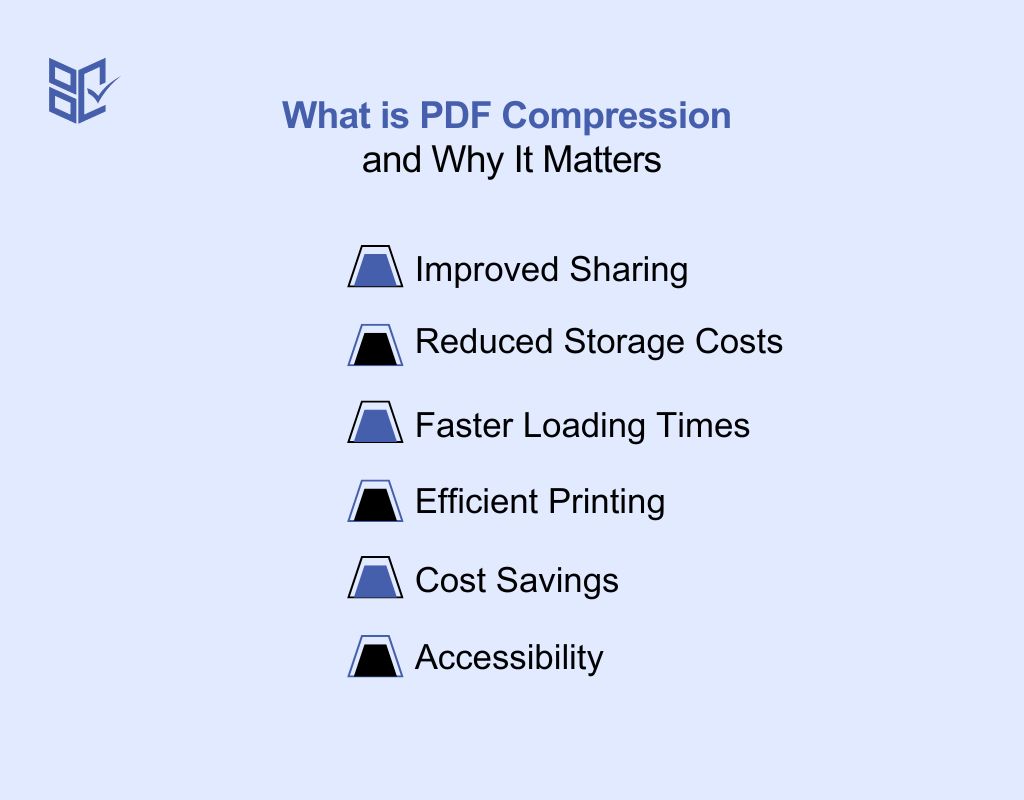
What is PDF Compression and Why It Matters
PDF compression is the process of reducing the file size of a PDF document by optimizing elements such as images, fonts, and embedded objects. This makes the file smaller without significantly affecting its readability or visual quality. Knowing how to compress a PDF file is important for anyone who frequently sends, stores, or works with digital documents.
Improved Sharing
When a PDF is too large, uploading it to a platform can be time-consuming or even impossible due to file size limits. Compression solves this by making the file small enough for quick uploads and downloads.
Whether you’re sending contracts, reports, or scanned receipts, smaller file sizes mean fewer delivery errors and faster transfers for both you and the recipient.
Reduced Storage Costs
Every large file you store, whether on a hard drive, shared network, or cloud storage, consumes space that could be used for other important documents.
Over time, these space demands can increase storage costs, especially for businesses handling thousands of PDFs. Compression ensures you can store more documents without constantly paying for additional storage.
Faster Loading Times
Large PDFs can take a long time to open, particularly on older devices or slower internet connections. By compressing a file, you make it load more quickly when opened from email attachments, websites, or cloud drives. This is especially useful when the document is intended for a wide audience, where user devices and internet speeds will vary.
Efficient Printing
Printers have memory limits, and very large PDF files can cause printing delays or failures. Compression helps avoid these issues by reducing the load on the printer’s memory.
This not only makes the printing process faster but also reduces the risk of errors such as missing pages or distorted images during printing.
Cost Savings
By reducing file size, you also reduce the time and resources needed to transfer, download, and store PDFs. For companies that work with large volumes of documents, even small reductions in file size per document can translate to significant savings over time in bandwidth and storage fees.
Accessibility
People with slow internet speeds or limited storage space often struggle with large file downloads. A compressed PDF is easier for them to open, view, and save, ensuring your document can reach the widest possible audience without causing frustration or technical difficulties.
How Does PDF Compression Work?
PDF compression works by applying algorithms that shrink file size through the removal of unnecessary or repetitive data. For images and graphics, this often means reducing pixel density or optimizing color information. It lowers the overall file weight while keeping the document readable and visually clear.
The main benefit of compression is efficiency. Smaller PDFs are quicker to upload, share by email, download, and store, making them easier to manage across devices.
It’s important to note, however, that once a file has been compressed, it cannot always be fully restored to its original quality. To avoid losing valuable details, creating a backup of the uncompressed version is recommended before applying compression.
How to Compress a PDF File on Windows
Knowing how to compress a PDF file on Windows allows you to quickly reduce file size without sacrificing too much quality.
Depending on the tools available, you can also learn how to compress a PDF without zipping or even how to make a PDF file smaller without compressing by removing unnecessary elements like metadata and unused fonts.
Method 1: Using a PDF Editor
The most effective way is with a dedicated PDF editor. These applications give you full control over compression settings, allowing you to choose between maximum size reduction and minimal quality loss.
Example: Adobe Acrobat
Launch Adobe Acrobat on your Windows computer.
Click Tools in the top menu, then select Optimize PDF.
Click Open and choose the PDF you want to compress.
From the toolbar, select Reduce File Size.
Choose the file compatibility option (e.g., retain existing or save for older Acrobat versions).
Press OK, rename the file if desired, and click Save.
This method gives you control over compression quality and compatibility, making it ideal for professional use.
Method 2: Reducing Size Without Compression
Sometimes you can make a PDF file smaller without compressing by removing unnecessary data:
Delete unused pages.
Remove embedded fonts you don’t use.
Delete hidden layers or annotations.
Strip out metadata.
Tools like free PDF editors or even online platforms can help with these adjustments. This method preserves original quality because it avoids altering images or text resolution.
How to Compress a PDF File on Mac
If you know how to compress a PDF file on Mac, you can easily reduce the file size without paying for third-party tools.
While PDF editors work on macOS just as they do on Windows, Mac users have an extra advantage: the built-in Preview app. It lets you compress the size of a PDF for everyday use or even when preparing a document for email.
Method 1: Using the Preview App (Free)
Preview is macOS’s default PDF and image viewer, and it includes a built-in compression option:
Open the PDF in Preview by double-clicking it or selecting Open With > Preview.
Click File in the top menu and choose Export.
Important: Select Export and not “Export as PDF” to see compression options.
In the export window, scroll to Quartz Filter.
Select Reduce File Size from the dropdown.
Choose a save location and click Save.
This method works well for sending smaller documents by email or uploading them to platforms with file size limits. However, note that image-heavy PDFs may experience a noticeable drop in image clarity.
Method 2: Using a PDF Editor on Mac
If you have a PDF editor such as Adobe Acrobat, you can compress your file with more control over quality and compatibility:
Open the PDF in your chosen editor.
Look for a Reduce File Size or Optimize PDF option under the File or Tools menu.
Adjust compression settings to balance size reduction and document clarity.
Save the compressed version to your preferred location.
This approach is better suited for professional documents where maintaining higher image quality is important.
How to Compress a PDF on iPhone
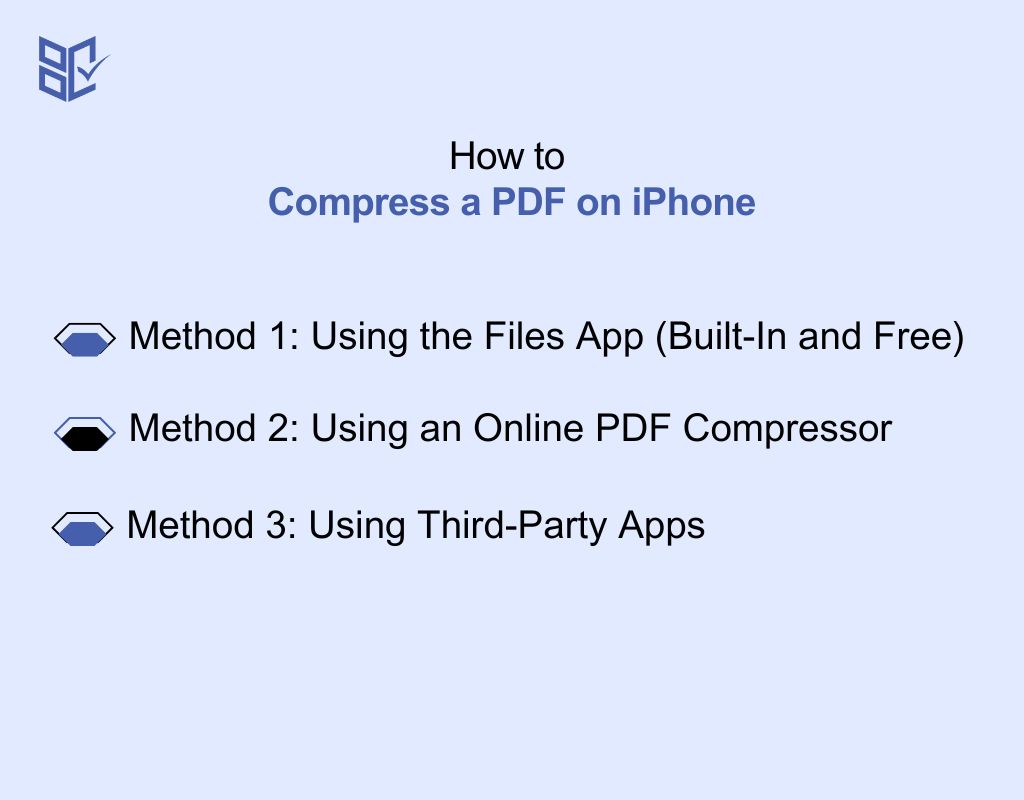
Learning how to compress a PDF on an iPhone is simple, and there are multiple ways to do it depending on whether you want to use built-in features or online tools. Whether you prefer Apple’s native Files app or a third-party solution, you can reduce file size in just a few taps.
The same approach applies if you’re searching for how to compress a PDF in an iPhone for quicker sharing via email, messaging apps, or cloud storage.
Method 1: Using the Files App (Built-In and Free)
The Files app on iOS offers an easy way to reduce file size without installing extra apps.
Step-by-step:
Open the Files app on your iPhone.
Locate your PDF in iCloud Drive, On My iPhone, or any linked cloud folder.
Compress the file:
For a single file: Long-press the PDF and select Compress.
For multiple files: Tap Select, choose the PDFs, tap the three-dot More menu, then choose Compress.
Access the compressed file: a ZIP file will appear in the same folder. You can unzip it if you need to view or send the compressed PDF.
Tip: The built-in compression is quick but may not reduce the size significantly for image-heavy files.
Method 2: Using an Online PDF Compressor
If you need more size reduction than the Files app provides, you can use a reputable online compression tool.
Example using Adobe’s Online Compressor:
Open Safari or any browser on your iPhone.
Visit Adobe’s online PDF compressor.
Upload your PDF from your device or cloud storage.
Select the compression level: low, medium, or high.
Tap Compress, then download the reduced file.
Other trusted options include iLovePDF and Xodo, both of which work directly in your browser.
Method 3: Using Third-Party Apps
For advanced control over compression quality and file output, third-party PDF apps are a great choice. Popular options include:
iScanner
PDF Expert
iLovePDF app
Adobe Acrobat mobile
These apps often allow you to select exact compression levels, preserve image clarity, and even batch-compress multiple files at once.
How to Compress a PDF Online for Free
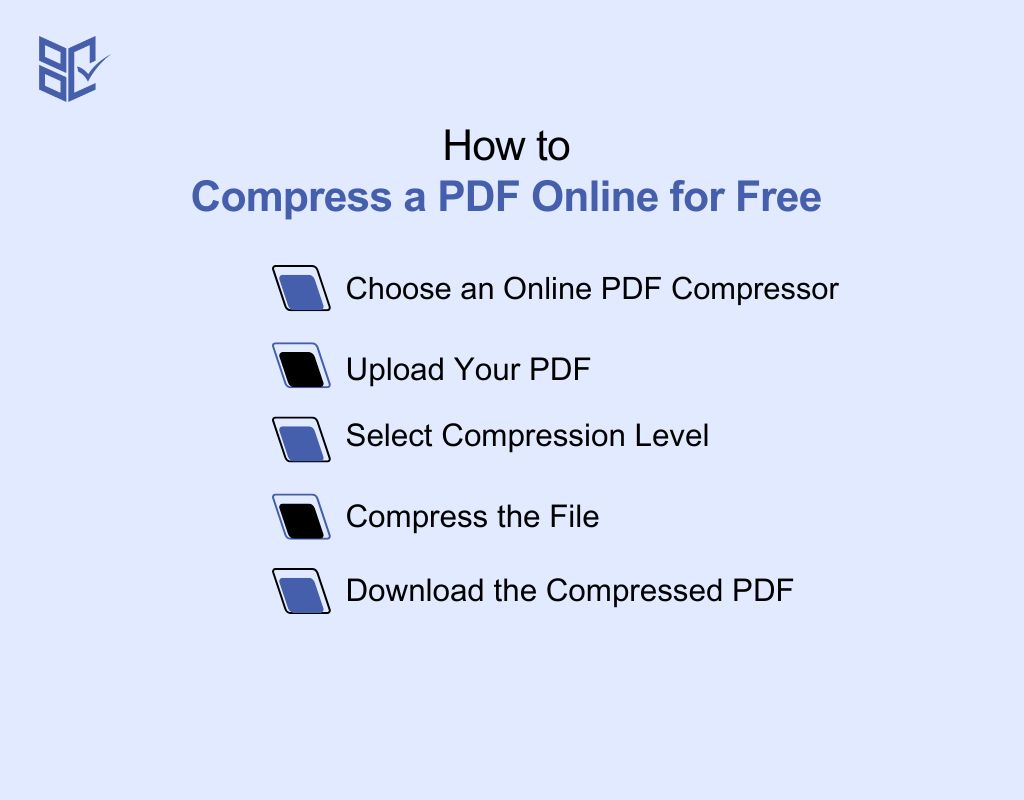
If you’re looking for how to compress a PDF file online for free, you don’t need to install any software.
Whether you’re searching for how to compress a PDF file size online free the process is quick and accessible from any device.
1. Choose an Online PDF Compressor
Select a trusted platform like Adobe’s Online PDF Compressor, SmallPDF, or iLovePDF. These services are free to use for basic compression and work on Windows, Mac, iOS, Android, and Linux.
2. Upload Your PDF
On the chosen website, click the upload button or drag and drop your PDF file into the designated area. Many tools also allow uploading from cloud storage services like Google Drive or Dropbox.
3. Select Compression Level
Most online PDF compressors give you three options:
High compression: maximum file size reduction, but may lower image quality.
Medium compression: balanced size reduction and quality.
Low compression: minimal file size change, preserves the highest quality.
4. Compress the File
Click the “Compress” or “Reduce File Size” button. The tool will process your document, optimizing images, fonts, and embedded graphics to reduce the file size.
5. Download the Compressed PDF
When the process finishes, click Download to save the reduced file to your device or back to your cloud storage.
How to Compress a PDF Without Losing Quality
If you want to know how to compress a PDF without losing image quality, the goal is to reduce file size while preserving sharpness, clarity, and formatting.
Choosing the right settings ensures you maintain visual fidelity while still reducing the file size.
1. Using Adobe Acrobat
Reduce File Size
Open your PDF in Adobe Acrobat.
Go to File > Save As Other > Reduced Size PDF.
Choose your desired compatibility level and save the optimized file.
Optimize PDF
In Adobe Acrobat, go to Tools > Optimize PDF.
Adjust settings like image compression, downsampling, and font embedding.
Select a compression level that balances file size with readability.
2. Online PDF Compressors
iLovePDF
Visit iLovePDF’s compressor page.
Upload your PDF, choose "Recommended" for balance or "Extreme" for maximum size reduction, then download the optimized file.
PDF24 Tools
Upload your PDF and select lossless compression.
This preserves image resolution while still lowering file size.
Adobe Online PDF Compressor
Upload your file to Adobe’s online tool.
Choose from High, Medium, or Low compression while maintaining quality.
How to Compress a PDF Without Adobe Acroba
If you’re looking for how to compress a PDF file without Adobe, there are plenty of free and paid alternatives that work just as well. Learning how can I compress a PDF without Adobe gives you flexibility.
Here are three consistent methods to achieve this.
1. Use an Online PDF Compressor
For those asking how can i compress a PDF for free, online PDF compressors are the easiest solution. Tools like SmallPDF, iLovePDF, and PDF24 Tools work directly in your browser.
Steps:
Visit a trusted online PDF compressor.
Upload your PDF (drag-and-drop or file picker).
Choose your compression level (low, medium, or high).
Start the compression process.
Download your optimized PDF.
Advantages:
No software installation needed.
Works on Windows, Mac, iOS, and Android.
Disadvantages:
Internet required.
Avoid for sensitive documents.
2. Use Free Desktop PDF Tools
If you want an offline option, software like PDF24 Creator (Windows) or Preview (Mac) can compress PDF files effectively without Adobe.
Windows (PDF24 Creator):
Install PDF24 Creator from the official website.
Launch the program and open your PDF.
Select “Compress PDF” from the menu.
Adjust compression quality and save the file.
Mac (Preview):
Open your PDF in Preview.
Go to File > Export.
Under “Quartz Filter,” select “Reduce PDF File Size.”
Save the compressed version.
Advantages:
Works without internet.
More control over compression settings.
Disadvantages:
Requires software installation.
Some tools have fewer customization options.
3. Use Mobile Apps
If you’re on the go, mobile apps let you compress PDFs directly from your phone. Popular options include iLovePDF, Xodo, and PDF Expert.
Steps:
Download and install a trusted PDF compression app.
Open the app and import your PDF file.
Select the “Compress” or “Optimize” option.
Adjust compression quality if available.
Save and share your compressed PDF.
Advantages:
Compress files anywhere.
Many apps are free.
Disadvantages:
Storage space needed for the app.
Free apps may have ads or limits.
How to Compress a PDF for Email
Knowing how to compress a PDF to send via email is essential for smooth file sharing. Below are three practical ways on how do i compress a PDF to email:
1. Use an Online PDF Compressor
Online PDF compression tools like SmallPDF, iLovePDF, or Adobe’s online service are perfect for quickly reducing file size before emailing.
Steps:
Go to a trusted online PDF compressor.
Upload your PDF file.
Select the compression level: for email, medium or high compression usually works best.
Download the compressed PDF.
Attach it to your email and send.
Advantages:
No installation required.
Works on any device.
Disadvantages:
Requires internet connection.
Avoid for confidential documents.
2. Use Desktop PDF Software
If you regularly send large PDFs, desktop tools like PDF24 Creator (Windows) or Preview (Mac) give you offline control over how to compress a PDF document for email.
Windows (PDF24 Creator):
Install and open PDF24 Creator.
Drag your PDF into the application.
Select “Compress PDF” and adjust quality settings.
Save the compressed file, then attach it to your email.
Mac (Preview):
Open your PDF in Preview.
Go to File > Export.
Select “Reduce File Size” from Quartz Filter.
Save and attach to your email.
Advantages:
Works without internet.
More control over output quality.
Disadvantages:
Requires installation (Windows).
May have fewer compression presets.
3. Use Mobile Apps
For those asking how can I compress a PDF file to email on the go, apps like iLovePDF, Adobe Acrobat Reader, and PDF Expert make it easy to compress and send directly.
Steps:
Install a trusted PDF compression app.
Import your large PDF file.
Tap the “Compress” or “Optimize” option.
Adjust compression quality if available.
Share directly via your email app from within the PDF tool.
Advantages:
Compress and send without a computer.
Direct email integration in many apps.
Disadvantages:
App storage requirements.
Free apps may add watermarks or size limits.
Special Cases on How to Compress a PDF
These are some special cases of compressing a PDF file:
How to Compress a Scanned PDF Document
Scanned PDFs often have larger file sizes because each page is saved as an image. Knowing how to compress a scanned PDF document ensures faster sharing without losing important details.
Method 1: Using OCR-Enabled PDF Software
Open your scanned PDF in a PDF editor with OCR capabilities (like Adobe Acrobat Pro or PDF24).
Enable OCR to convert images into text where possible.
Apply “Reduce File Size” or “Optimize PDF” with image compression.
Save your new, smaller file.
Method 2: Online Tools
Websites like iLovePDF and SmallPDF have dedicated “Compress Scanned PDF” features.
Simply upload your scanned PDF, select “High Compression,” and download.
Tip: For documents that must retain high image clarity (e.g., contracts), choose “Lossless” compression settings.
How to Compress a PDF in Bluebeam
If you work in construction or architecture, you may already use Bluebeam Revu for handling PDFs. Learning how to compress a PDF in Bluebeam can save storage space on large project files.
Steps in Bluebeam:
Open your PDF in Bluebeam Revu.
Go to Document > Reduce File Size.
Select compression settings. You can adjust image quality and remove unused elements.
Save the optimized file under a new name to keep the original intact.
How to Compress a PDF in Acrobat
When using Adobe tools, knowing how to compress a PDF in Acrobat is straightforward, especially with the features in Adobe Acrobat Pro.
Reduce File Size Method:
Open the PDF in Adobe Acrobat Pro.
Go to File > Save As Other > Reduced Size PDF.
Select compatibility options and save.
Optimize PDF Method:
Open the PDF in Adobe Acrobat Pro.
Go to Tools > Optimize PDF.
Adjust image resolution, font embedding, and object compression.
Save the optimized version.
Pro Tip: Use “Audit Space Usage” under the Optimize tool to see which elements are taking up the most space before compressing.
Advanced PDF Compression Tips
When you need to know how to compress a PDF to smaller size or even how to compress a compressed PDF file, advanced methods can help you reduce beyond basic compression while keeping document quality intact.
Use Multi-Pass Compression
Instead of relying on a single tool, try compressing the PDF in multiple stages. For example, start with a desktop PDF editor like Adobe Acrobat Pro to apply its “Reduce File Size” function.
Then, upload the already compressed PDF to an online tool such as SmallPDF or iLovePDF for further optimization. This multi-step approach often finds extra space savings without introducing noticeable quality loss.
Remove Unnecessary Elements
Large PDFs often contain hidden data that isn’t visible when reading the document but still increases file size. By using an “Audit Space Usage” feature in a PDF editor, you can identify and delete unused fonts, outdated metadata, hidden annotations, or unnecessary bookmarks. Removing these elements helps compress a compressed PDF file even further without touching the visual content.
Adjust Image Resolution Manually
Automatic compression tools offer over-compress, reducing image clarity. Instead, manually adjust the DPI of images within the PDF. For general viewing, 150–200 DPI is usually enough, while 300 DPI is ideal for high-quality printing. This ensures you know how to compress a PDF to a smaller size without creating blurry images or illegible text.
Convert Color to Grayscale
If your PDF doesn’t require color images, switching them to grayscale can cut down file size significantly. This works especially well for scanned documents, reports, or forms that are primarily text-based. Many PDF editors offer a “Convert to Grayscale” function in their optimization tools.
Save as Optimized PDF
Rather than simply using “Save” or “Save As,” look for a “Save as Optimized” or “Save as Reduced Size PDF” option. These commands actively remove redundant data, compress images, and re-encode content to produce a much smaller file. It’s a simple step that ensures you’re using the most efficient version of the file.
Split Large PDFs
When even the best compression methods can’t get your PDF to the desired size, splitting it into smaller sections can help. Use a “Split PDF” tool to divide large documents by page range or section. This makes them easier to email, upload, or store, especially when there are attachment size limits.
Conclusion
Knowing how to compress a PDF is something that makes your day-to-day work a lot easier. A smaller file means quicker uploads, faster emails, and less hassle when sharing with others. Whether you’re on Windows, Mac, iPhone, or using an online tool, there’s always a method that fits your needs.
The key is finding the balance between reducing file size and keeping your document looking sharp. With the tips and tools we’ve covered, you can shrink your PDFs without losing the quality that matters.
FAQs
Can you compress a PDF?
Yes, you can compress a PDF to reduce its file size. This can be done using built-in tools like Preview on Mac, third-party software such as Adobe Acrobat, or free online compressors. The goal is to make the file smaller without losing important quality or readability.
Can I compress a PDF file for email?
Absolutely. You can use an online compressor, desktop software, or your device’s built-in tools to shrink the PDF. Once compressed, the smaller file is easier to attach and send via email without hitting size limits.
How to compress a PDF file Mac?
On a Mac, you can compress a PDF using Preview. Open the PDF, go to “File” → “Export,” choose “Reduce File Size” under Quartz Filter, and save. You can also use PDF editors or online tools for more control over compression settings.
How to compress a large PDF file for email?
For large PDFs, use dedicated compression tools like Adobe Acrobat, SmallPDF, or iLovePDF to reduce the file size. Choose a balance between size reduction and quality. If it’s still too large, you can split the file into smaller parts before emailing.
How to compress a PDF file for email?
Open your PDF in a compressor tool (online or desktop), select the compression level, and save the reduced file. Attach the smaller PDF to your email to ensure it meets size restrictions and sends quickly.
How to compress a PDF file to less than 2MB?
Use an online compressor like SmallPDF, iLovePDF, or Adobe Acrobat’s Optimize PDF feature. Upload your file, choose a high compression setting, and check the output size. If it’s still above 2MB, reduce image resolution or remove unnecessary elements to meet the size requirement.
How to compress a PDF less than 50 KB?
Reaching under 50 KB requires maximum compression and possibly simplifying the document. Use tools like PDF24 or ILovePDF with “Extreme” compression, lower image resolution, and remove embedded fonts. Be aware that very high compression can affect quality, so check readability before sharing.